
Whether you’re unsure which MacBook you’ve got, you’re checking software compatibility, or thinking about selling it for something new, knowing your device’s make and model is essential. The good news? It’s quick and easy to find. Here’s how to check your which MacBook you have:

What model is my MacBook? Here’s how to find out!
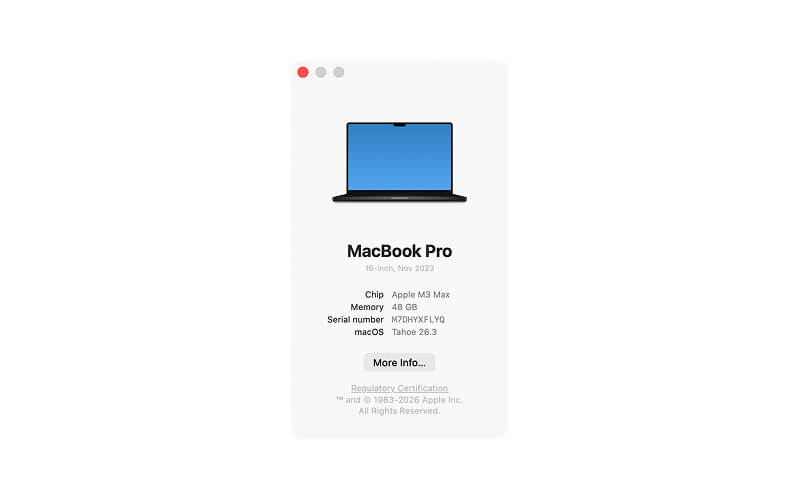
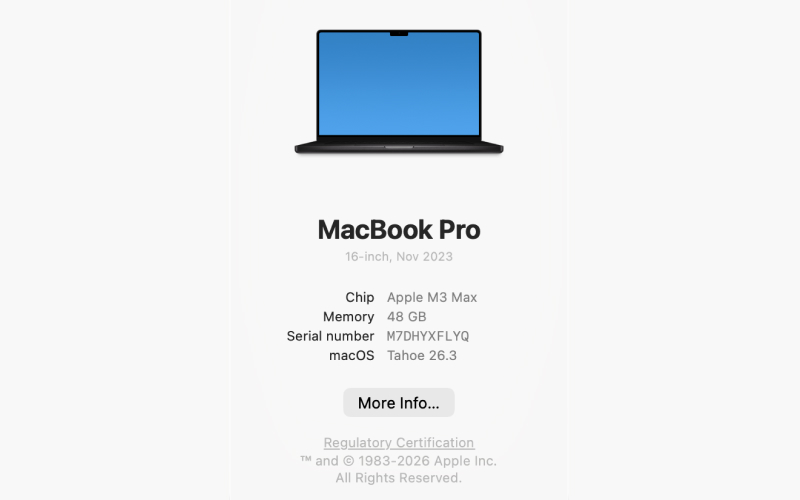
How can I find out what MacBook I have?
1. Turn on your MacBook
2. Click on the Apple logo in the top left corner
3. Click About This Mac
4. A window showing your MacBook's model name, screen size, release date & memory will appear.
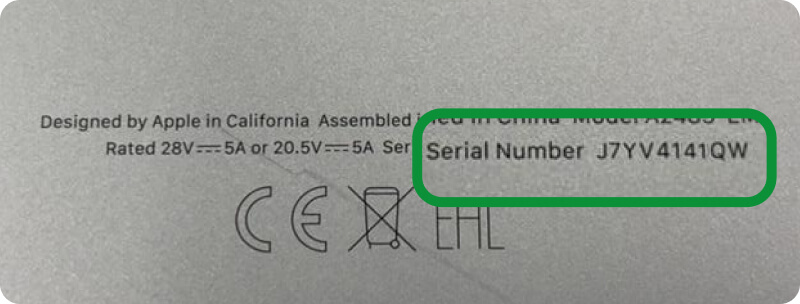
Already factory reset your device?
No problem at all, you can still work out what your device is without having to set it up again.
To find what MacBook you have after it's been reset, follow these steps:
Check the original box if you still have it, the box usually clearly shows the make, model and storage
OR
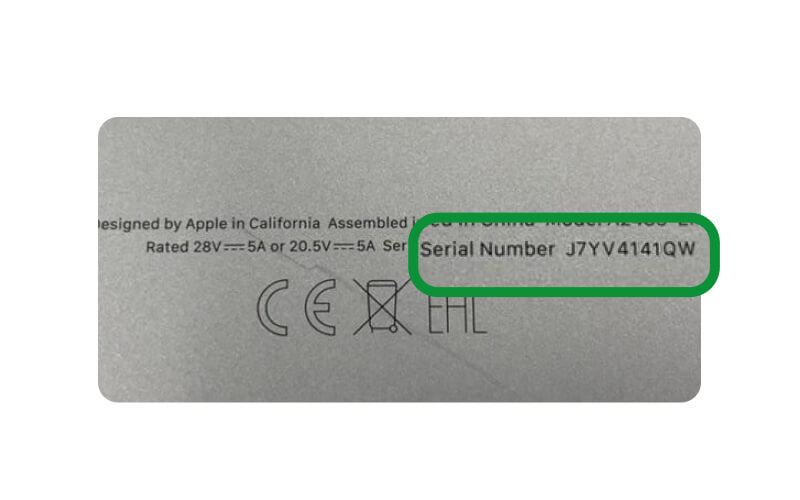
Look for the serial number printed on the bottom of the laptop e.g. M7DHYXFYQ and enter the serial number here. Then use the button below and scroll down to product or packaging for more information.
Ready to trade in your device?
Once you’ve identified your device, click below and enter the make, model and screen size into the search bar for a free instant evaluation! The quickest way to get paid for your MacBook is to choose Royal Mail at the checkout, we'll pay you the same day we receive it at our warehouse via bank transfer after a quick check.